How to Download Pinterest Videos on Any Device, Free, Fast & No App Needed (2026)
Download a public Pinterest video in seconds on your phone or computer.
Quick answer: Open the Pinterest app, tap the Share button on the video, then select Copy Link. Go to pinvideo.io, paste the link into the input box, and tap Download. The video is downloaded as an MP4 file, with no app or account required.
Pinterest is packed with useful and inspiring videos. You can find everything from cooking tutorials and home décor ideas to DIY projects, workouts, and travel clips. The trouble is that finding a video you like doesn't always mean you can save the actual video file to your device.
Pinterest lets you save a pin to one of your boards, but that isn't the same as downloading the video itself. If you want an MP4 copy for offline viewing, you'll need a separate download tool.
That's where PinVideo.io comes in. In this guide, we'll walk through the process of downloading a public Pinterest video on a phone, tablet, PC, or Mac. You won't need to install an app or create an account.
Why People Download Pinterest Videos
There are plenty of reasons someone might want to save a Pinterest video. Here are some of the most common ones:
Watch offline. Saving a video can be useful when you're traveling, commuting, or somewhere with a slow or unreliable internet connection.
Keep useful ideas handy. Pinterest content can change over time. A pin may be removed, become unavailable, or simply become difficult to find later. Keeping a copy can make it easier to refer back to something that inspired you.
Share it with friends. Depending on the situation, sharing a saved video file can be more convenient than sending someone a Pinterest link.
Use it as a reference. Designers, students, teachers, and content creators may save videos as references for personal projects, presentations, or study.
Responsible use reminder: Downloading a video doesn't automatically give you permission to reuse or redistribute it. If the content belongs to another creator, respect their copyright and any applicable Pinterest terms. When in doubt, ask the creator for permission before republishing or using the video commercially.
What You Need Before You Start
You don't need much to get started. In most cases, you'll only need these three things:
A public Pinterest video pin. The pin needs to be publicly accessible. Private content can't be retrieved by an external download tool.
A web browser. Chrome, Safari, Firefox, and Edge are all suitable. There's no special browser to install.
An internet connection. A normal Wi-Fi or mobile data connection should be enough for most downloads. Larger videos may take longer on slower connections.
How do I know what a Pinterest video URL looks like?
A standard Pinterest link may look like
https://www.pinterest.com/pin/123456789012345678/.
Pinterest also uses shorter links such as
https://pin.it/AbCdEfG.
Both can be used when the pin is publicly accessible.
How to Copy a Pinterest Video Link
Before downloading a video, you'll need its URL. The quickest way to get it depends on whether you're using the Pinterest mobile app or a desktop browser.
On the Pinterest App (iPhone or Android)
- Open the Pinterest app and find the video you want to save.
- Tap the pin to open it in full view.
- Tap the Share button. Its location can vary between Pinterest app versions.
- When the sharing menu appears, select Copy Link.
- The Pinterest URL is now copied to your device's clipboard.
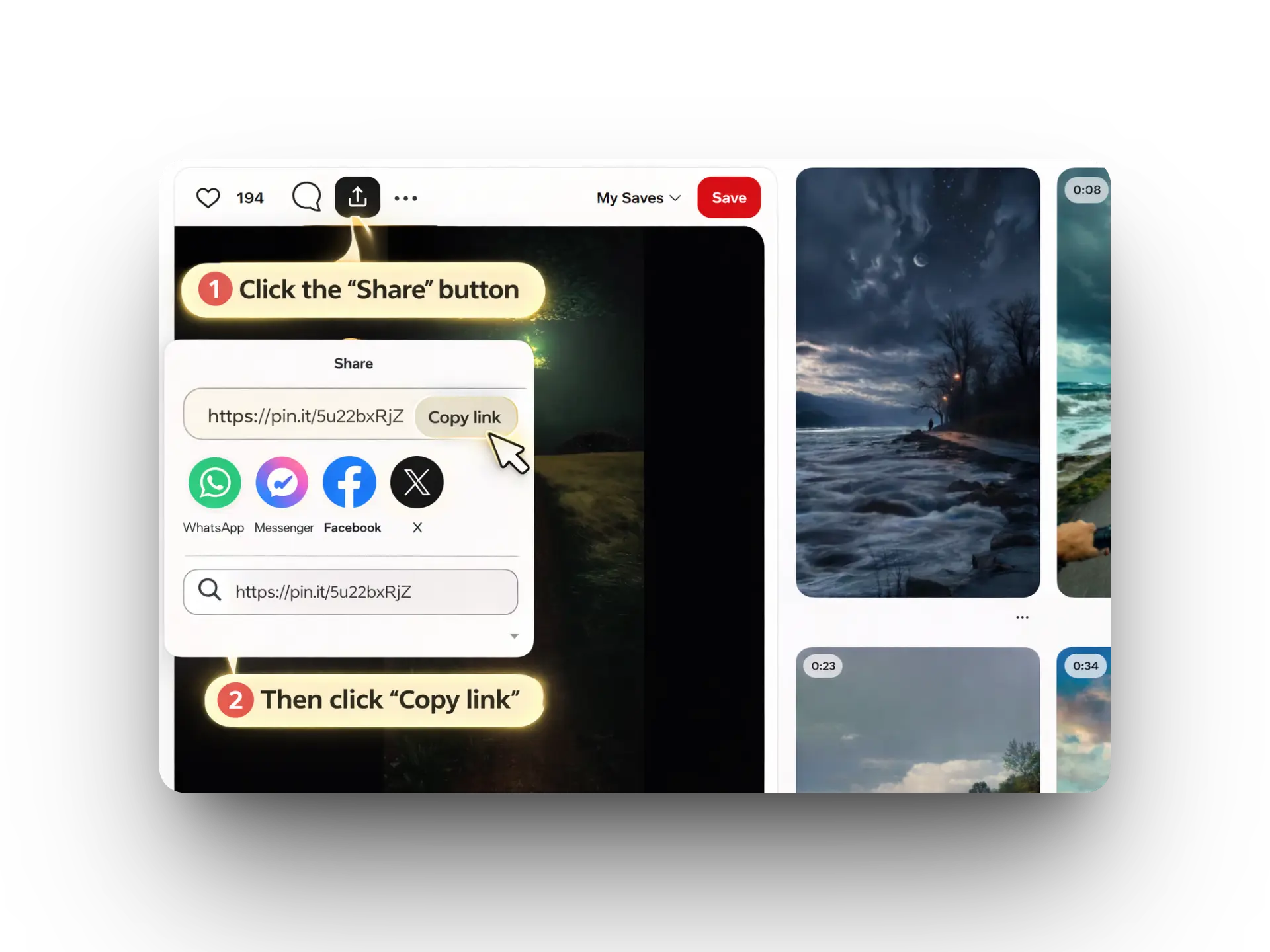
Open the sharing menu and select "Copy Link" to copy the Pinterest video URL.
On a Desktop Browser (Pinterest.com)
- Go to pinterest.com and find the video pin.
- Click the pin to open it.
- Copy the URL from your browser's address bar.
- You can also use the pin's sharing option and select Copy Link if it's available.
How to Download Using PinVideo.io, Step by Step
Once you've copied the Pinterest link, the rest of the process is straightforward.
Go to PinVideo.io
Open your browser and go to pinvideo.io. You'll find the download field on the page, where you can enter your Pinterest video URL.
Paste the Pinterest Video Link
Click or tap inside the input box and paste the URL you copied from Pinterest.
Make sure the complete link is included. It may start with
https://www.pinterest.com/pin/ or
https://pin.it/.
Tap the Download Button
Select the Download button. PinVideo.io will process the public Pinterest link and display the available download options when they're available.
Choose Quality and Save
Choose the available quality that suits your needs. A higher-resolution file generally looks sharper but may take up more storage space. Select the download option next to the quality you want.
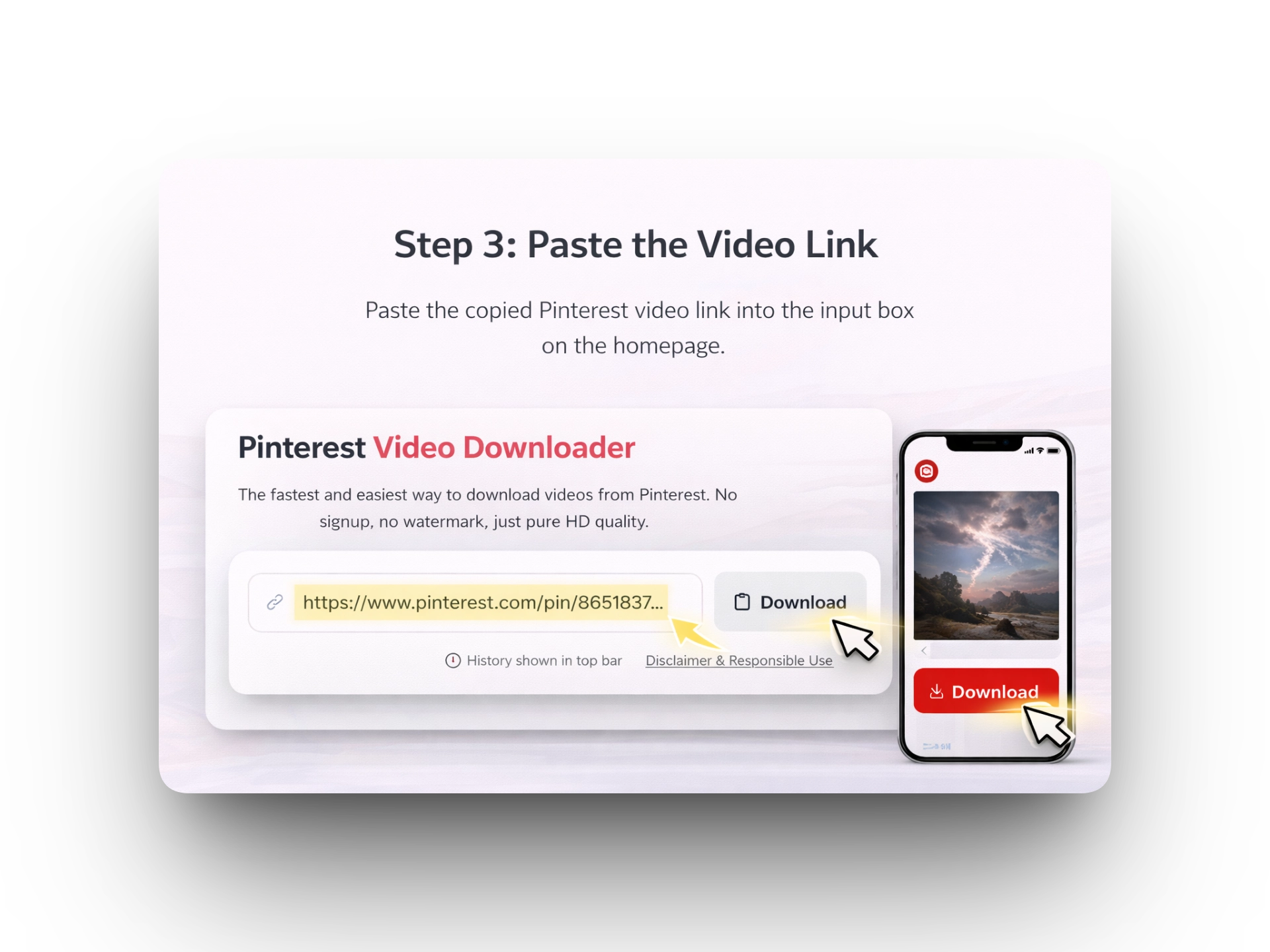
Paste the full Pinterest video URL and select Download to start the process.
How to Download a Pinterest Video on iPhone (iOS)
Downloading files on an iPhone can work a little differently from downloading them on a computer. Safari saves downloaded files through the Files app, so here's what to expect.
iPhone Steps (Using Safari)
- Open the Pinterest app and copy the video link.
- Open Safari and go to pinvideo.io.
- Paste the Pinterest link into the input field and tap Download.
- Choose the available video quality you want to save.
- Safari may display a download indicator near the top of the screen while the file is downloading.
- After the download finishes, look for the video in the Downloads folder inside the Files app.
- If you want to move the video to your Photos library, open the Files app, find the downloaded file, and use the available sharing or save option.
iPhone tip: If the video opens in Safari instead of downloading, try pressing and holding the download link. Depending on your iOS version, Safari may show an option such as "Download Linked File."
How to Download a Pinterest Video on Android
Android Steps (Using Chrome)
- Copy the Pinterest video link from the Pinterest app or browser.
- Open Chrome and go to pinvideo.io.
- Paste the link into the input field and tap Download.
- Choose the available quality you want.
- Chrome may show the download progress on the screen. Once complete, open the downloaded file or find it in your Downloads folder.
- You can access the file through your phone's Files app or, depending on your device, your Gallery or Photos app.
Android tip: If Chrome opens the video instead of downloading it, use Chrome's download option or press and hold the download link and select the appropriate download option.
How to Download a Pinterest Video on PC or Mac
Desktop Steps (Chrome, Edge, Firefox, or Safari)
- Go to pinterest.com, find the public video pin, and copy its URL from the browser address bar.
- Open a new browser tab and go to pinvideo.io.
- Click inside the input box, paste the URL, and select Download.
- Choose the available video quality you want to save.
- Once the download finishes, you can normally find the MP4 file in your browser's Downloads folder.
Choosing the Right Video Quality
The available quality depends on the source video and what Pinterest makes available. If more than one option is shown, you can choose based on the balance between image quality and file size.
HD (720p or 1080p), A good choice when you want a sharper image and have enough storage space. Higher-resolution files are usually larger.
SD (360p or 480p), A practical option when storage space or download speed matters more than maximum resolution. The file will generally be smaller, although the image won't be as sharp as HD.
The available quality depends on the original video. If the creator uploaded a low-resolution video, a downloader can't turn the original file into genuine high-resolution footage.
Troubleshooting, When It Doesn't Work
Most download problems come down to the URL, the availability of the pin, the browser, or the internet connection. Here is what to check first.
| Problem | Most Likely Cause | Fix |
|---|---|---|
| "Invalid URL" error | The link is incomplete or contains extra characters | Return to Pinterest and copy the link again. Paste the complete URL into the downloader. |
| "Video not found" error | The pin may be private, unavailable, or deleted | Open the pin directly in your browser and check whether it is publicly accessible. |
| Browser plays the video instead of downloading | Your browser is opening the video file directly | Try pressing and holding the download link on mobile, or use your browser's download option when available. |
| Download is very slow | Your internet connection or the server may be slow | Check your connection, switch between Wi-Fi and mobile data if possible, and try again after a short while. |
| No quality options appear | The source video may not provide multiple options, or there may be a temporary issue | Refresh the page and try the URL again. If the problem continues, try again later. |
| The video has no sound | The original Pinterest video may not contain audio | Play the original pin on Pinterest first. If the original is silent, the downloaded version may also be silent. |